
How to Map Articulations in Tokyo Scoring Strings 2
Our flagship orchestral string ensemble library, Tokyo Scoring Strings (TSS), offers a huge range of playing techniques; from sustains, harmonics, and tremolo, to spiccato, pizzicato, and decrescendos.
In addition, TSS has a major advantage over other sample libraries in its ability to customize your articulation workflows! You can assign (map) any articulation to trigger based on velocity, keyswitch, MIDI CC position, key range, and sustain pedal position, as well as any combination of these rules.
This guide will walk you through exactly how to do that!
Default Mapping
To easily see at a glance how any articulation is mapped, first click on one of the articulation tabs - Longs, Legatos, or Shorts. You'll see a grid of articulations in that category.
Within the box of each articulation is some text like "KS (L): C-2" or "Vel 1-127". This is shorthand used to describe the current articulation rule.
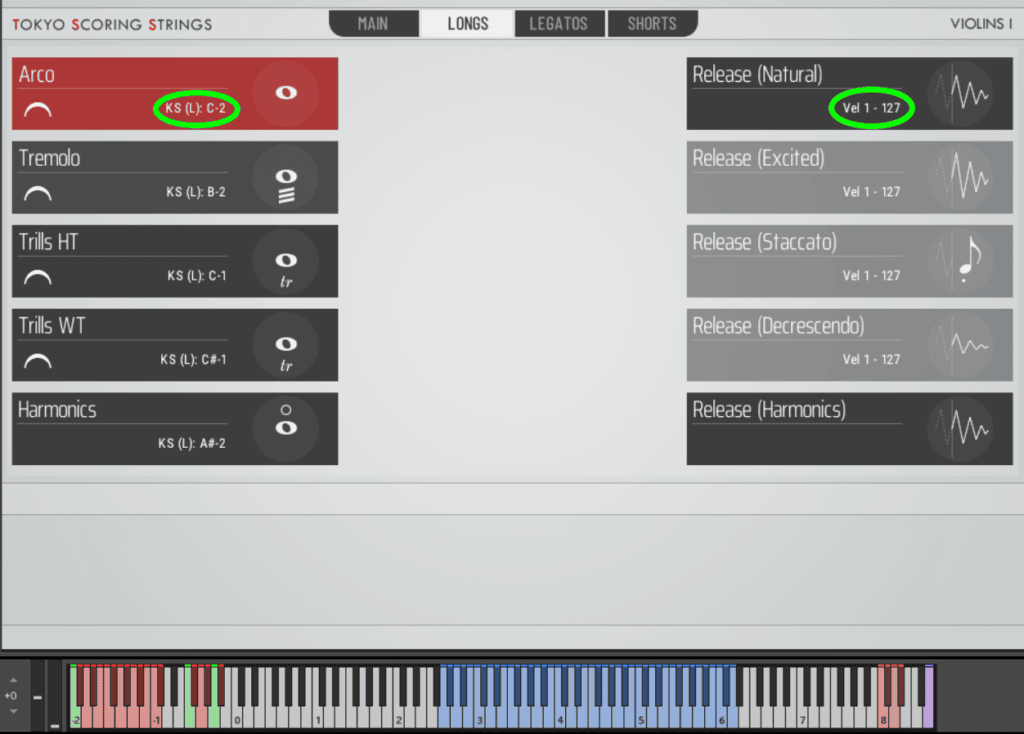
KS = Keyswitch. This indicates a specific note has been set to trigger this articulation. It will appear as a red key on the Kontakt virtual keyboard at the specified note, and turn green when enabled.
L = Latching. A latching keyswitch need only be tapped (not held) - the key will stay green once pressed a single time. Non-latching keyswitches are only enabled when held down.
C-2, D-2... etc. The actual MIDI note to press.
Vel 1-127. Indicates the MIDI velocity range that must be used.
Editing Mapping Rules
To see these rules in more detail, you'll need to click on an articulation in the UI - the button will turn red, and the panel on the bottom will display the articulation in the title (in the screenshot below, "Tremolo" is selected). On the far right side of this panel, click the MAP tab.

As you can see, up to three rules can be used to tell the TSS engine when to play the articulation. If multiple rules are set, ALL of the conditions must be met for the articulation to play.
To change the Rule Type, click the dropdown menu that in the above screenshot says "Keyswitch". If no rule is set, you'll see an "Add" button (like in Rules 2 & 3 in the screenshot above).
Once a Rule Type is selected, that rule's unique parameters will appear.
Practical Example 1: Short Control on Modwheel
The best way to see how this system works is to change the default setup. Many composers like assigning short length articulations to the modwheel (which triggers MIDI CC value #1).
In this example, we'll assign Sforzando Short, Decrescendo Short, Staccato, Staccatissimo, Spiccato, and Spiccato Secco. To do this, we'll use the following steps - keep in mind we'll be repeating these steps for each short articulation.
- Click each short articulation (in the screenshot below, we're setting up Sforzando Short).
- Set the keyswitch rule to the same note for each short articulation (F-2 in this example).
- Click "Add" under Rule 2.
- Change the Rule 2 type to MIDI CC.
The articulation rule should now look like this:
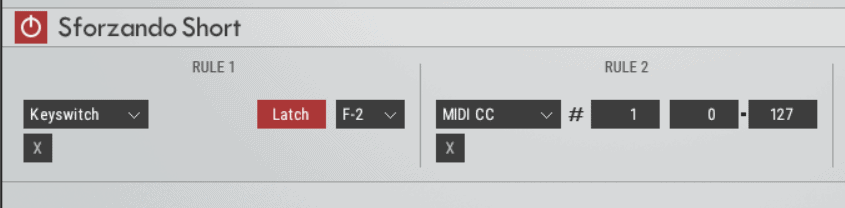
In our screenshot, you can see the values after the number sign are "1", "0", and "127." This makes it so that the articulation triggers if MIDI CC 1 is set between the values 0 and 127.
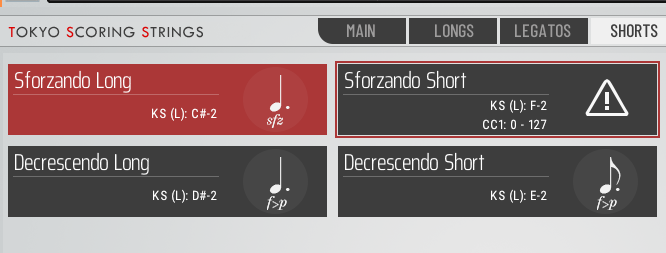
At this point, if you've set up each short and left the MIDI CC rule alone, you may see this icon, and find that the articulations won't trigger:
But, you may be able to guess what to do next!
Let's instead set the range to something smaller, like 0 to 19.
Now, repeat this process for the other shorts. For example:
- Sforzando Short: 0-19
- Decrescendo Short: 20-39
- Staccato: 40-59
- Staccatissimo: 60-79
- Spiccato: 80-99
- Spiccato Secco: 100-127
Remember, all of these must have their Rule 1 keyswitch set to F-2.
Once you do this, and you tap on the MIDI note F-2, you'll be able to move the modwheel around while playing and hear how the short length gets tighter as you raise the modwheel!
Practical Example 2: Pedal-Controlled Legato
Often, composers want to be able to play polyphonically (multiple notes at once) some times, but play legato other times without the engine getting mixed up.
Our Poly Legato and Lookahead features can help with this, but if you prefer to play things in real-time with minimal latency, you can achieve the same effect by simply editing the articulation map.
Start by heading to the Legatos tab and click on one of the enabled legatos, which will look something like this:

The way this is currently set, Bowed Legato will trigger if you tap the F-1 keyswitch and play at velocities 80-127. We need to change the second rule.
From the Rule Type dropdown, select Sustain Pedal and set the value to Down.

Repeat this for all other legato articulations. Now, while the sustain pedal is up, you'll be able to play multiple notes at once. But as soon as you push the pedal down and start overlapping notes, you'll hear legato transitions.
But wait... what about portamento? This is on a separate keyswitch by default.
Here is where you can express your personal workflow preferences!
Perhaps you want portamento to be part of the same pedal-controlled legato system, just in a different velocity range (like on low velocities).
Perhaps you want that system to be attached to a different MIDI CC, or keyswitch instead of a pedal.
It's up to you!